





Cross Stitch Pattern Creator
 |
最新バージョン | 5.0.2 |
 |
アップデート | Jun,19/2026 |
 |
開発者 | Crochet Designs |
 |
OS | Android 8.0+ |
 |
カテゴリー | アートデザイン |
 |
サイズ | 7.1 MB |
 |
Google PlayStore |  |
| タグ: | アート&デザイン |
-
最新バージョン
5.0.2
-
アップデート
Jun,19/2026
-
開発者
Crochet Designs
-
OS
Android 8.0+
-
カテゴリー
アートデザイン
-
サイズ
7.1 MB
-
Google PlayStore


 ダウンロード(5.0.2)
Design your own custom cross stitch patterns.
クロスステッチのオリジナルパターンを作成しましょう。
Cross Stitch Pattern Creator
クロスステッチパターンの作成ツール
Includes 4 free sample patterns. Download at no cost. Activation requires a $2.99 payment.
無料サンプルパターンを4つ収録しています。無料でダウンロードでき、アクティブ化には2.99ドルの支払いが必要です。
We recommend using a tablet for optimal viewing due to typical cross stitch pattern dimensions.
一般的なクロスステッチパターンのサイズに適した最適な表示のために、タブレットの使用をお勧めします。
Start designing personalized cross stitch patterns with the Cross Stitch Pattern Creator
クロスステッチパターン作成ツールでパーソナライズされたクロスステッチパターのデザインを始めましょう。
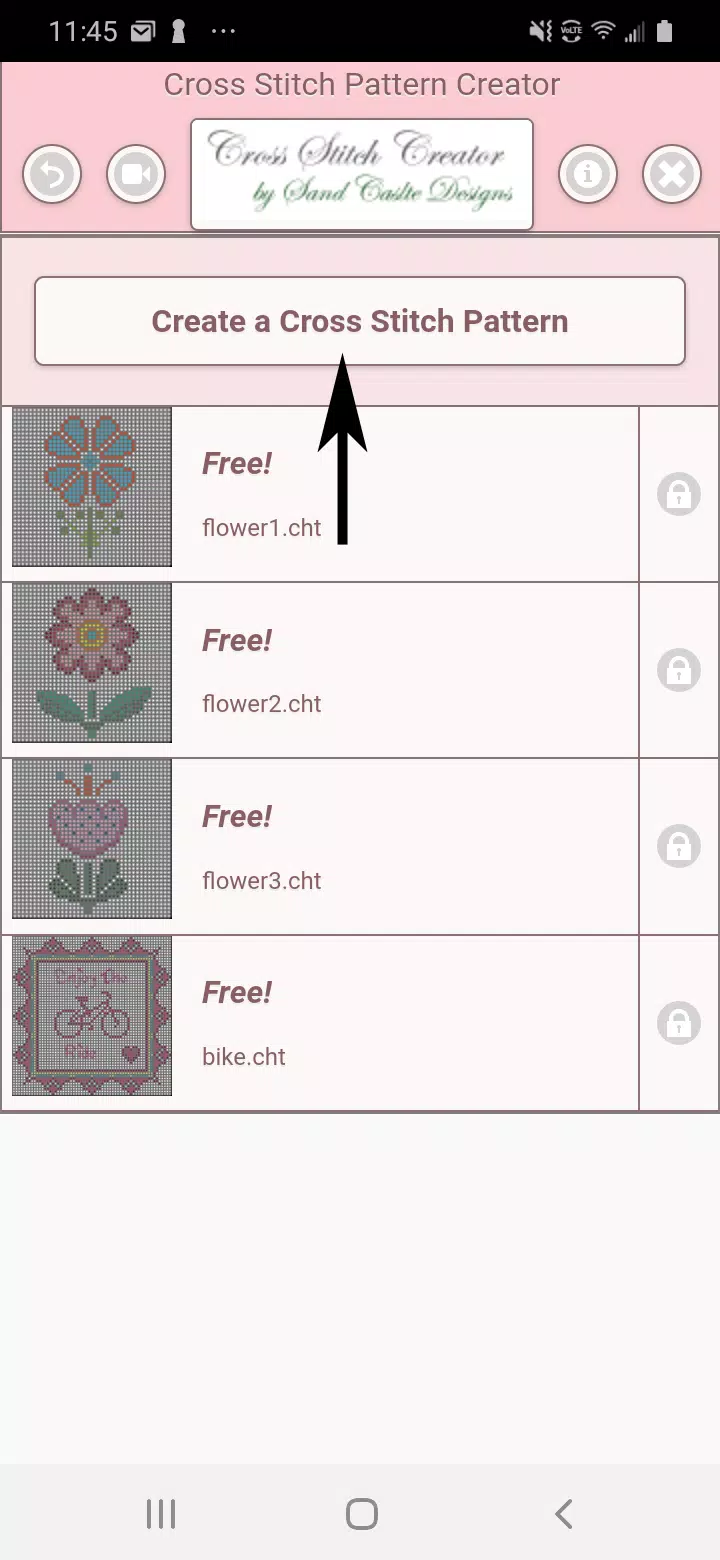
To begin creating patterns, click the "Create a Cross Stitch Pattern" button.
パターンを作成するには、「クロスステッチパターンを作成」ボタンをクリックしてください。
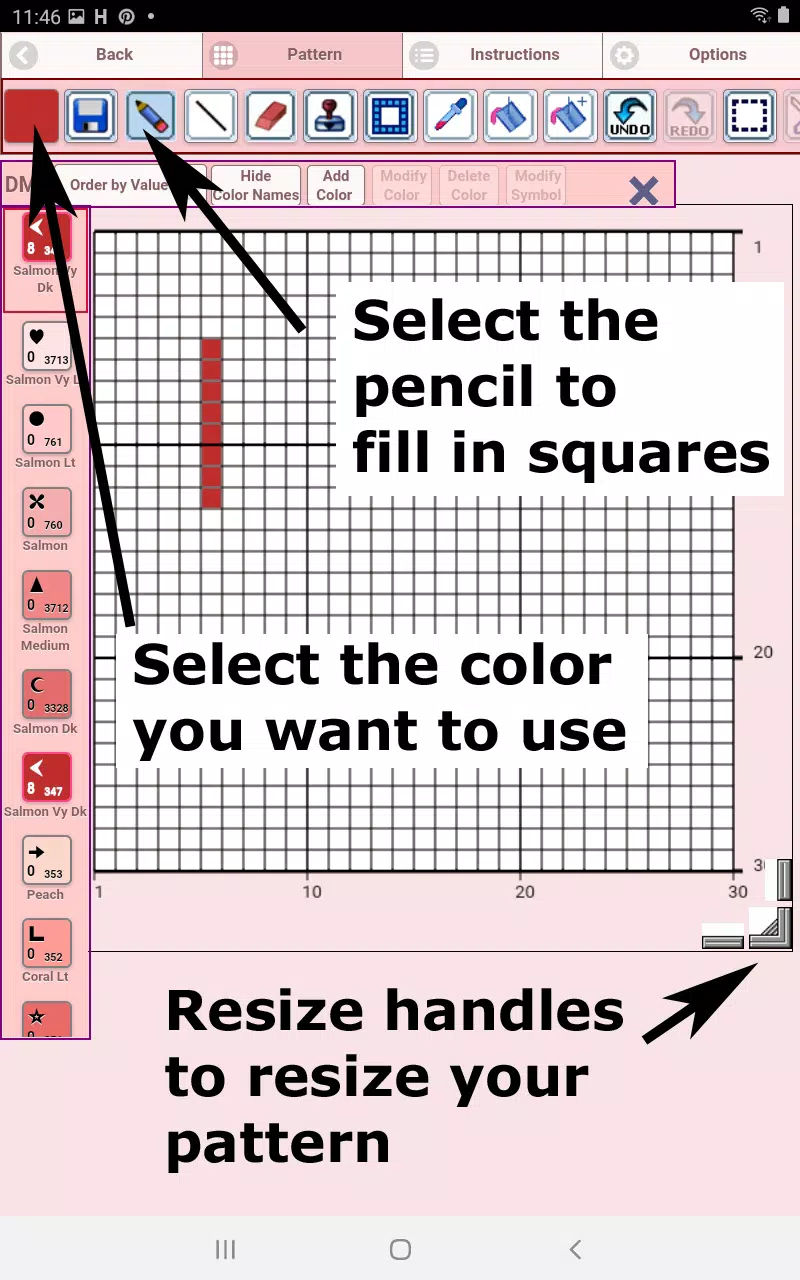
The Cross Stitch Pattern Editor will open. Fill grid squares with your chosen DMC floss colors.
クロスステッチパターンエディターが開きます。選択したDMC刺しゅう糸の色でグリッドの四角を埋めてください。
You can even create and add custom colors to your palette.
独自のカラーを作成してパレットに追加することもできます。
Getting started - Use the pencil tool to fill squares in your pattern. Use the eraser to remove filled squares.
はじめに - パターンの四角を塗りつぶすには鉛筆ツールを使用し、埋められた四角を取り除くには消しゴムツールを使用します。
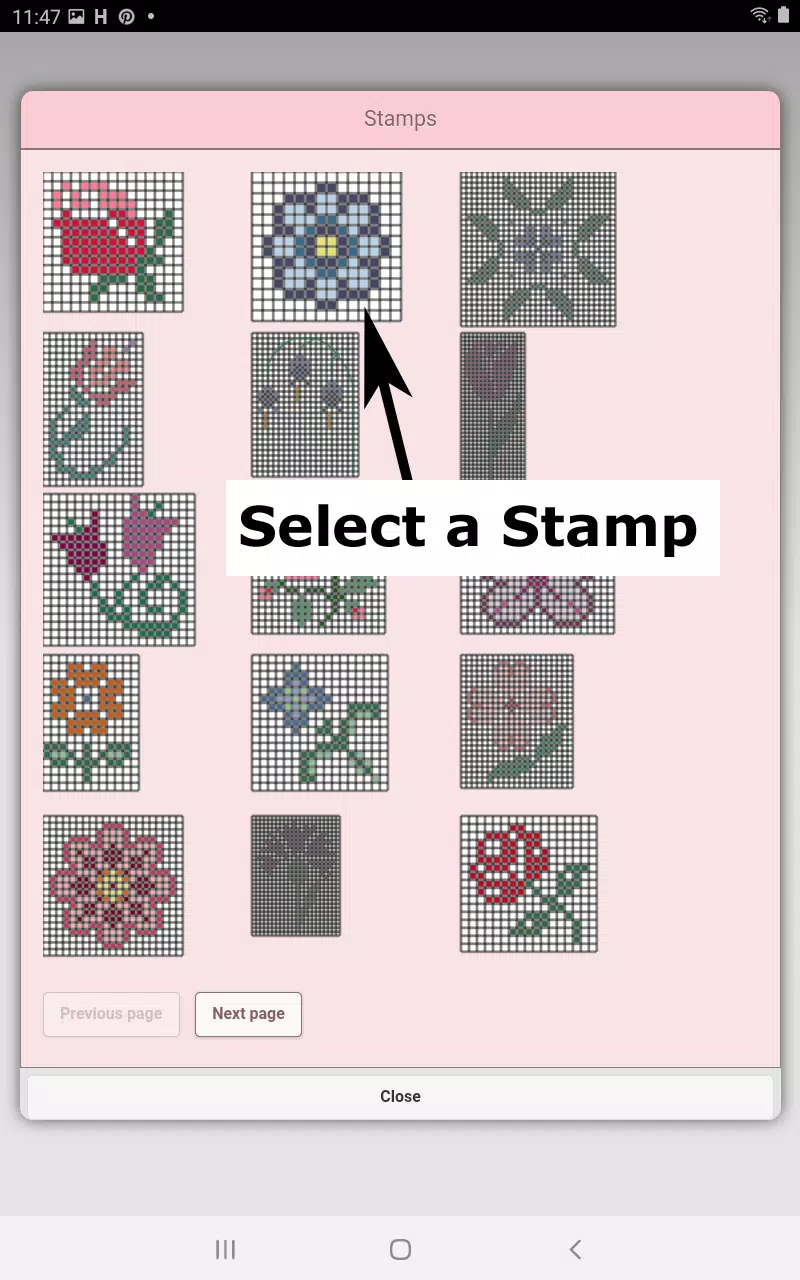
Choose from over 80 decorative stamps and borders to enhance your cross stitch pattern.
クロスステッチパターンを引き立てるために、80種類以上の装飾スタンプとボーダーから選択できます。
The toolbar buttons, from left to right, include:
左から右へ並ぶツールバーのボタンには以下のものがあります:
DMC Floss Color button - Select your desired floss color
DMC刺しゅう糸の色ボタン - 希望する刺しゅう糸の色を選択します
Save button - Save your pattern progress
保存ボタン - パターンの進行状況を保存します
Pencil button - Fill grid squares in your pattern
鉛筆ボタン - パターン内のグリッドの四角を埋めます
Eraser button - Remove filled squares and backstitch lines
消しゴムボタン - 埋められた四角とバックステッチラインを取り除きます
Backstitch button - First choose your backstitch color, then use this tool to add backstitch lines
バックステッチボタン - まずバックステッチの色を選択し、このツールを使用してバックステッチのラインを追加します
Backstitch move button - Drag entire backstitch lines to new positions
バックステッチ移動ボタン - 全体のバックステッチラインを新しい位置にドラッグします
Backstitch move stitch end - Adjust individual backstitch endpoints using the blue control points
バックステッチ端点移動 - 青いコントロールポイントを使用して個々のバックステッチの終点を調整します
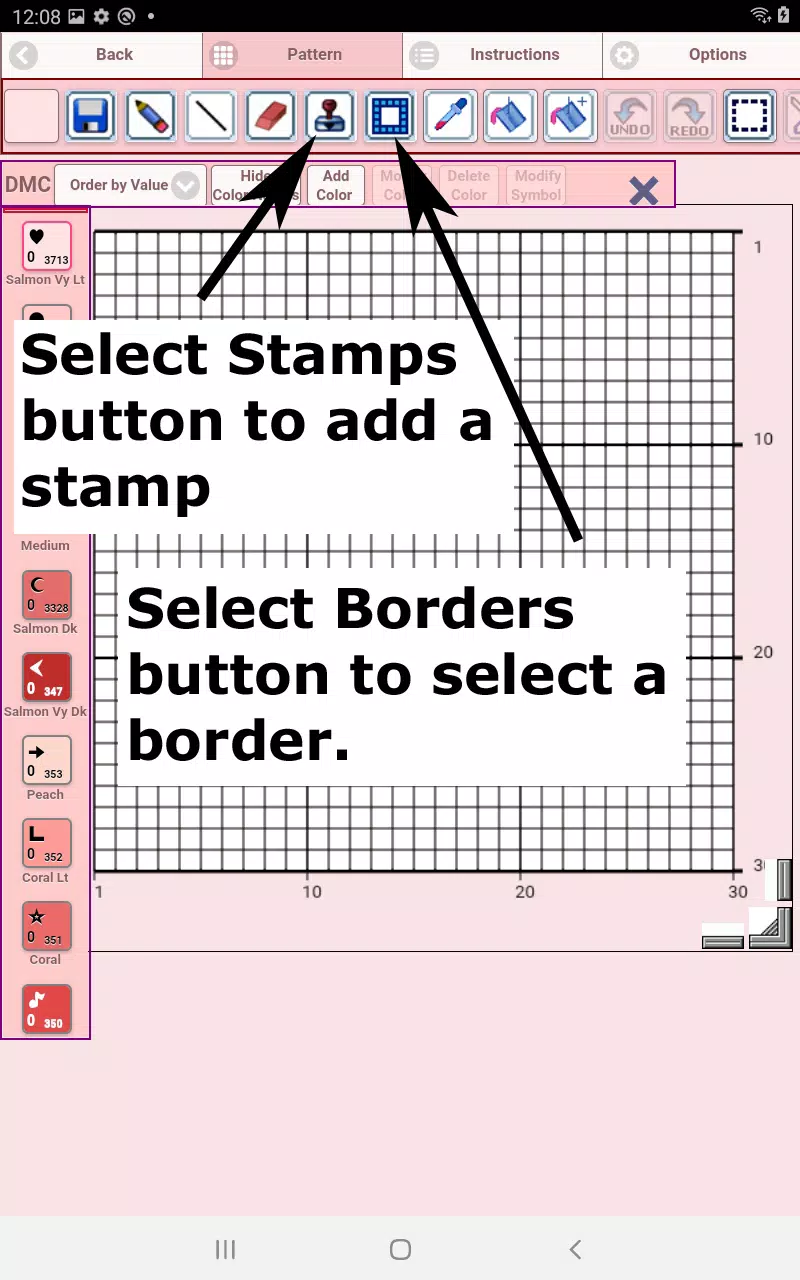
Stamps button - Add small pre-made cross stitch designs to your pattern
スタンプボタン - パターンに小さな既製のクロスステッチデザインを追加します
Borders button - Apply decorative borders that automatically wrap around your pattern edges
ボーダーボタン - パターンの端に沿って自動的に配置される装飾的なボーダーを適用します
Dropper button - Sample existing colors from your pattern for reuse
スポイトボタン - 既存の色からサンプルを取り、再利用できるようにします
Bucket button - Fill connected areas with your currently selected color
バケツボタン - 現在選択されている色で接続された領域を満たします
Bucket+ button - Replace all instances of one color with another throughout your pattern
バケツプラスボタン - パターン全体で特定の色を他の色に置き換えます
Undo button - Reverse your most recent changes
元に戻すボタン - 最後に加えた変更を取り消します
Redo button - Restore changes you previously undid
やり直しボタン - 以前取り消した変更を復元します
Selection box button - Define pattern areas for cutting, copying, rotating, or flipping
選択ボックスボタン - パターンの領域を切り取り、コピー、回転、反転するために定義します
Cut button - First select an area, then remove it from your pattern
カットボタン - まず領域を選択し、次にパターンから削除します
Copy button - First select an area, then duplicate it to your clipboard
コピーボタン - まず領域を選択し、次にクリップボードに複製します
Paste button - Insert copied elements into your pattern and position them as needed
貼り付けボタン - コピーした要素をパターンに挿入し、必要に応じて配置します
Rotate button - Rotate selected areas or the entire pattern
回転ボタン - 選択された領域または全体のパターンを回転させます
Flip right/left button - Mirror selected areas or the whole pattern horizontally
左右反転ボタン - 選択された領域または全体のパターンを水平方向にミラーリングします
Flip top/bottom button - Mirror selected areas or the whole pattern vertically
上下反転ボタン - 選択された領域または全体のパターンを垂直方向にミラーリングします
Zoom in button - Enlarge pattern view
ズームインボタン - パターンの表示を拡大します
Zoom out button - Reduce pattern view
ズームアウトボタン - パターンの表示を縮小します
Symbols button - Display unique symbols representing each color value
シンボルボタン - 各色の値を表す一意のシンボルを表示します
Picture button - Convert images from your device into cross stitch patterns
画像ボタン - デバイスから画像を取得し、クロスステッチパターンに変換します
Social media button - Share your patterns through email, messaging, and other platforms
ソーシャルメディアボタン - メール、メッセージング、その他のプラットフォームを通じてあなたのパターンを共有します
Resize bars - Drag the corner handles to adjust your pattern dimensions
リサイズバー - 隅のハンドルをドラッグしてパターンの寸法を調整します
Option settings - Customize grid colors, switch between solid and X fill styles,
オプション設定 - グリッドの色をカスタマイズし、塗りつぶしスタイルを「実線」と「X」の間で切り替えます。
and hide row/column counters
行/列のカウンターを非表示にします
Instruction page - View DMC color requirements and finished sizes for
説明ページ - 各種Aida布目のDMC色の必要数と完成サイズを表示します
various Aida cloth counts
Finished Product page - Preview your completed cross stitch project,
完成品ページ - 完了したクロスステッチプロジェクトをプレビューし、
including optional fabric color changes
任意の生地色の変更も含みます